Android
The Android app makes a phone a member of one network. It joins by the invite’s QR code or code, reaches the other devices by name and address, and shows how each is reached.
What the app does #
The app runs juist on a phone with Android 12 or newer. The phone joins one
network as a member without roles. While its VPN is on, every app on the
phone reaches the other devices by name, such as nas.home.juist, and by
address, and the LANs behind its subnet routers. The VPN carries
only the traffic to the network, to those subnets and the phone’s DNS
(Names); all other traffic bypasses juist.
The phone cannot:
- be in more than one network;
- turn public names on, so they resolve publicly there;
- route a subnet or be an exit node, though it can use both;
- invite devices, hold an admin key, or relay. Invites come from an admin’s computer.
Installing the app #
Install the app with F-Droid, which then brings every new release, or download it once from GitHub.
With F-Droid #
Install F-Droid on the phone, if it is not there yet. Another client for F-Droid repositories, such as Droid-ify, works too.
On the phone, tap Add juist’s repository to F-Droid and confirm in F-Droid. Or copy this address, open Repositories in F-Droid, tap + and paste it:
https://pkg.juist.nning.io/juist/android/repo?fingerprint=0AAB0ADFA407BE52D9FB3AF3C0426FF0CDF4CA67CEBBFD981EA29EF0BD373C30Search F-Droid for juist and install it. Android asks you to allow F-Droid to install apps.
F-Droid updates the app with every release. The fingerprint in the address lets it check that the repository is juist’s.
From GitHub #
Download juist-android-arm64.apk from the
latest release on the
phone and open it. Android asks you to allow the browser to install apps.
To update, install the next release’s APK over it, or add the F-Droid
repository, which updates an app installed this way too.
Checking the app #
The app is signed with juist’s release key. Its certificate’s SHA-256 fingerprint is:
51:5C:14:80:41:8A:98:4A:8B:1A:E3:69:51:7A:2C:9F:7F:48:A2:19:41:0C:AE:E6:6F:B5:82:EF:EC:AB:E5:21apksigner verify --print-certs juist-android-arm64.apk shows it. The APK is
also in SHA256SUMS
(Verifying a download).
An app you built yourself is signed by another key, so it does not install over a release, or the other way round.
Joining a network #
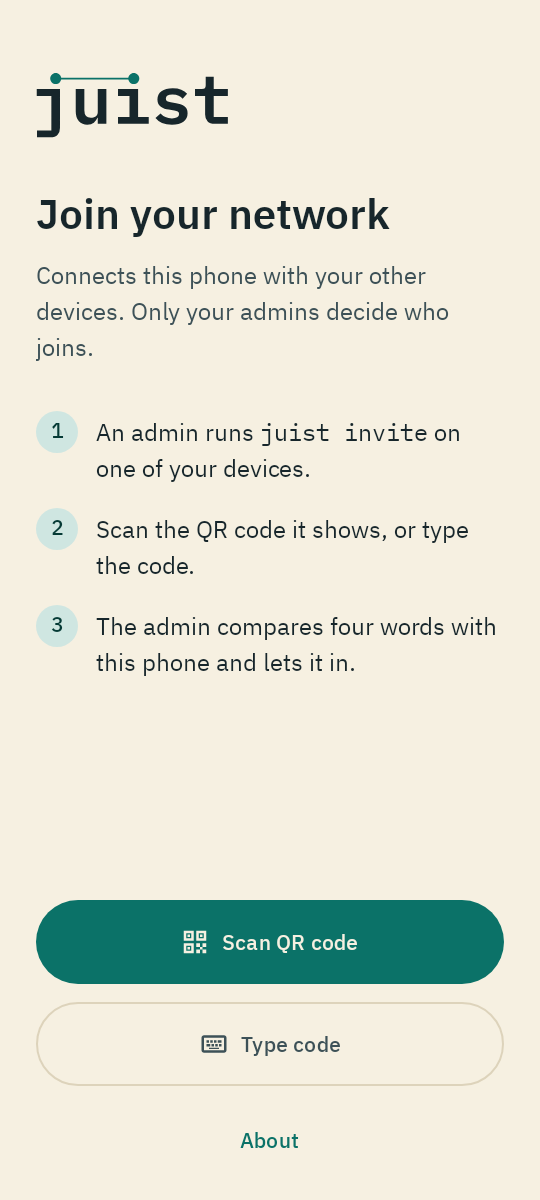
Start an invite in a terminal at least 60 columns wide, so that it shows the QR code:
juist inviteOpen juist, tap Scan QR code and point the camera at the QR code.
Or tap Type code and type the code, such as
42-drumbeat-tolerance-glucose. A code works only on the same LAN as the
inviting device. Elsewhere, scan the QR code or paste the link into the same
field.
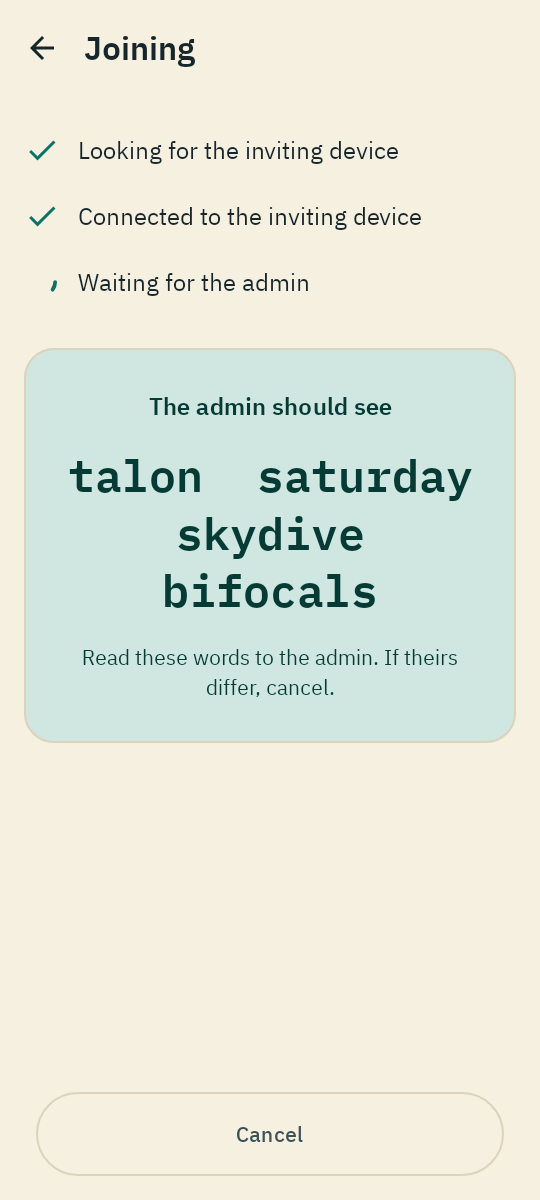
Check the phone’s name in the network, such as pixel-8. Tap Join, and
allow the VPN when Android asks. The phone then shows four words.
Compare them with the words the invite shows. Answer y if they match. If
not, answer n and cancel on the phone.
If the network needs more than one admin’s vote, the phone shows
Waiting for approval: 1 of 2 votes until the others approve.
Inviting devices explains the code, the link
and the words.
The status screen #
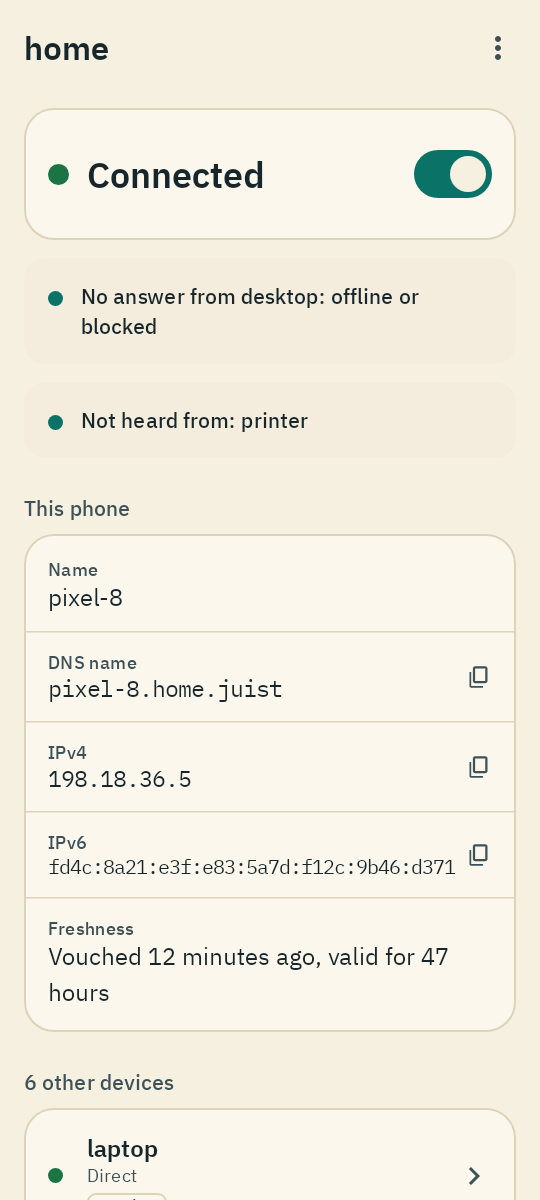
The app shows what juist status, juist health and juist devices show on
a computer (Status and devices): the
network’s state, what needs attention, this phone’s name, addresses and
freshness, and how each other device is reached. Tap an address to copy it.
| State | Meaning |
|---|---|
| Connected | the phone reaches the network’s devices |
| Waiting for devices | no other device has been heard from yet |
| No tunnel up | the devices are known, but no traffic flows to any of them |
| Limited | no voucher has confirmed the phone’s view lately, so it reaches only vouchers |
| Removed | the phone is no longer in the network |
| Refused | the network’s devices refuse the phone; most likely it was removed |
| Disconnected | the network’s history has split, and every tunnel is down until an admin resolves it |
| Off | the VPN is off |
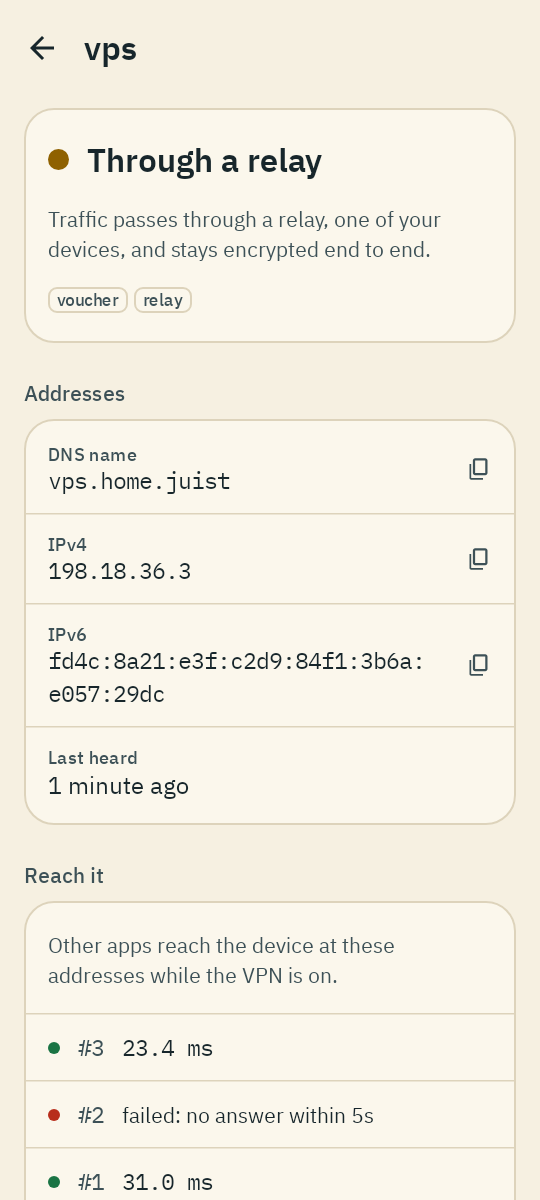
A device is reached Direct or Through a relay, or not at the moment: No answer, Searching, Offline, Not heard from, Not checked yet, or Outdated (it runs an older juist, and only pings get through until it is updated).
Tap a device to see its name, addresses, roles, its juist’s schema and when
it was last heard from. Ping sends an echo through the tunnel, which juist
on that device answers even if its firewall drops pings. Open in browser
opens http:// at its address.
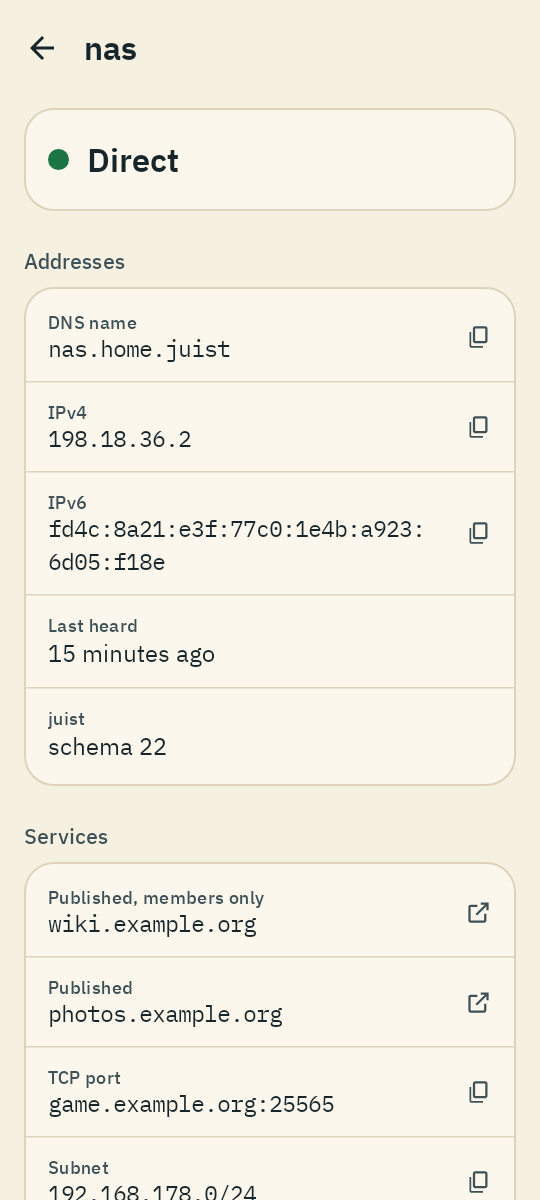
Under Services, the device’s screen lists what the network publishes on it (Publishing services): a name opens in the browser, a TCP port and a subnet copy when tapped. Names for members alone say so.
Details #
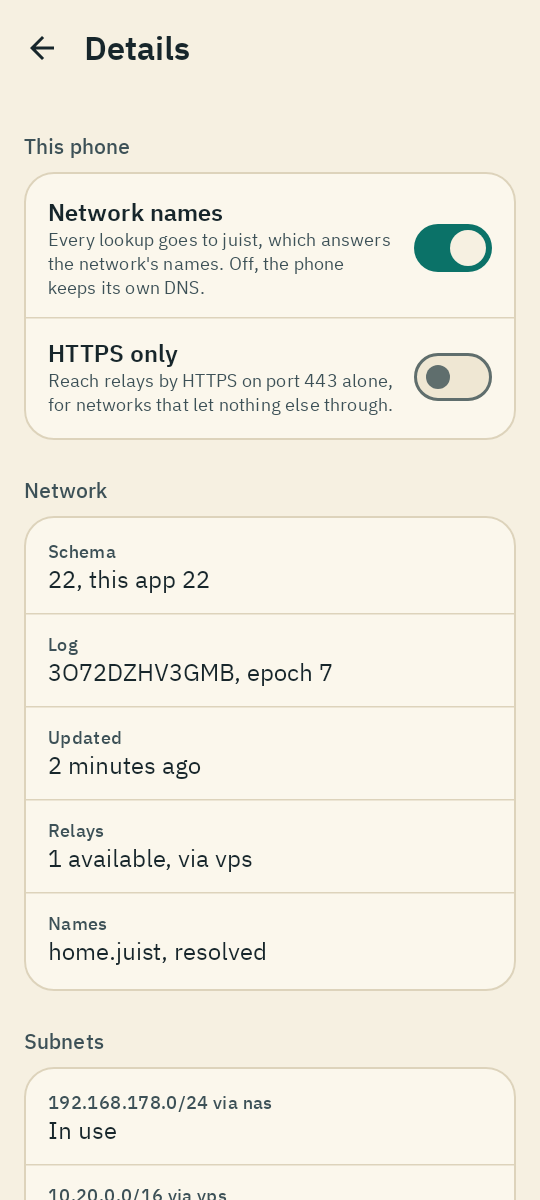
Details, under the devices or in the menu, shows what juist status
and the status page show beyond the
state: the network’s schema next to the app’s, the log’s head, when the
phone last brought its view of the network up to date, the relays and the one
the phone goes through, the network’s names, its subnets, and the log’s latest
changes, as juist log lists them.
It also holds the phone’s two settings:
- Network names: every lookup goes to juist, which answers the network’s
names. Off, the phone keeps its own DNS and resolves none of them, as
juist set --dns=falsedoes on a computer. - HTTPS only: the phone reaches relays by HTTPS on port 443 alone, as
juist set --https-onlydoes (Networks that only allow HTTPS).
Under Diagnosis, the app counts how often it set up the VPN and how its lookups went: how many failed or were slow, and which. Copy log adds how Android sees the phone’s networks.
Subnets #
When the network grants a member a subnet, such as the LAN at home, the phone reaches it through that member while the VPN is on. A subnet the phone’s own network already covers, such as that LAN while the phone is on its Wi-Fi, stays outside the tunnel, and Details says so. Moving to mobile data takes it into the tunnel again.
Names #
While the VPN is on, every lookup on the phone goes to juist in the app. It
answers the network’s names, such as
nas.home.juist or just nas, and the names
published under the network’s domain,
which then lead straight to their device. It also answers reverse lookups of
the network’s addresses. All other names go to the phone’s network as
without juist, over DNS over TLS if Private DNS is automatic and the network
supports it. Turning the VPN off gives the phone its own DNS back.
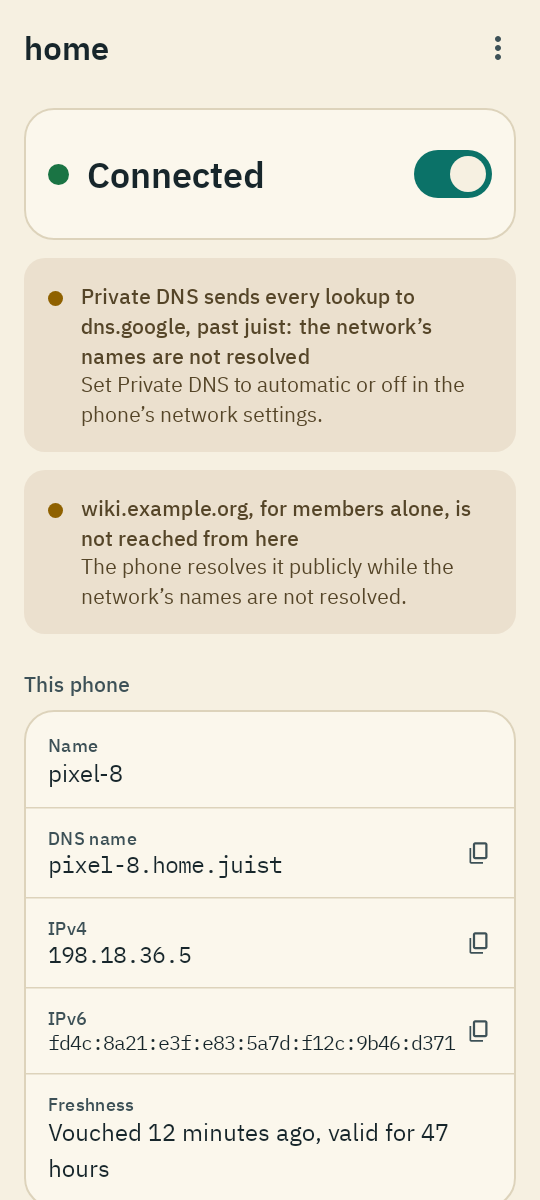
Android’s Private DNS setting decides whether lookups reach juist:
| Private DNS | Network names |
|---|---|
| Off | resolved |
| Automatic | resolved |
| Private DNS provider hostname | not resolved: Android sends every lookup to that provider |
With a provider’s hostname set, the app says that the network’s names are not resolved, and names each members-only name that is out of reach.
Through an exit node #
If the network has exit nodes, the status screen lists them under Internet, next to Direct. Choose one, and the phone’s internet traffic and DNS go through it. juist still answers the network’s names. While the exit node cannot be used, internet traffic is blocked, not sent directly, and the app says why. Choose Direct to go without it.
If juist stops, Android sends traffic directly. To block it instead, turn on Always-on VPN and Block connections without VPN for juist in Android’s VPN settings. The app links to them.
Turning the VPN off and on #
The switch next to the state turns the VPN off and on, as does juist’s tile in Android’s Quick Settings: add it by editing the tiles, and press it long to open the app. While it is on, a notification shows the state, with a Turn off action. If the VPN was on, juist turns it on again after a restart or an update. Android runs one VPN at a time: another VPN app turns juist off, and the app says so.
Battery #
juist saves battery while the screen is off, the phone dozes or battery saver is on, and on mobile data or a hotspot whenever the app is not in front. It then checks the other devices and syncs the log less often, and stops listening on the Wi-Fi’s multicast DNS. Changes to the network still arrive at once, and traffic through the tunnel is not slowed.
Once the network runs the app’s schema (Updating juist), the other devices let the phone sleep too: they check on it less often and leave log sync to the phone. A member still reaches a sleeping phone at once.
When the phone is removed #
An admin removes the phone like any device: juist remove pixel-8
(Removing a device). The app then shows
Removed. Tap Forget network to start over with new keys, and join
again with a new invite.
To stop using juist on the phone, have an admin remove it first, then uninstall the app. The network keeps listing a phone that was only uninstalled.
Privacy and security #
- The phone’s keys are sealed by an AES-256 key in Android Keystore, inside the phone’s security chip if it has one. A copy of the app’s files cannot be opened on another phone.
- Nothing of juist goes into a backup or onto a new phone. A new phone joins with its own invite.
- The camera is used only to read the QR code. Nothing it sees is stored or sent.
- About, in the menu, shows the version and licenses. Copy log copies the app’s log, which lives in memory only, with how Android sees the phone’s networks and the lookups that failed. It names your devices and addresses, so share it only with someone you trust.
Troubleshooting #
| What you see | What to do |
|---|---|
| Not joined | The invite expired, was used, or the inviting device is out of reach. Start a new invite. A code works only on the same LAN; scan the QR code instead. |
| No device may relay | A phone on mobile data often needs a relay. An admin grants relay to a device with a public address (Relays). |
| Limited | The phone has not reached enough vouchers for 48 hours. Connect it to a network where it can reach them. |
| Too few vouchers have vouched: limited in … hours | Bring a voucher back online before then. |
| Refused or Removed | The phone was removed. Forget the network and join again with a new invite. |
| Private DNS sends every lookup to … | Set Private DNS to automatic or off in the phone’s network settings. |
nas.home.juist does not resolve | Turn the VPN on. Otherwise the status screen says why. |